

BYON: Bring Your Own Number
Connect a phone number you already own, from any telecom or SIP provider, to your Oktivo voice agent. No porting, no downtime, no code.1. What is BYON?
BYON (Bring Your Own Number) lets you connect a phone number you already own, from any telecom or SIP provider, to your Oktivo voice agent. There’s no porting and no downtime: your number stays with your existing provider, and Oktivo simply connects to it. Why teams use it:- Keep the number your customers already know and trust.
- Go live in minutes, no waiting on a number port, which can take days.
- Fully reversible: nothing changes on your provider’s side, you’re just adding a route.
- Works with any SIP-compatible provider: Vobiz, Twilio, Telnyx, Exotel, and others.
2. Before You Start
Make sure you have the following ready:- A phone number from any telecom or SIP provider (this guide uses Vobiz as the example).
- Admin access to that provider’s console, so you can create a SIP trunk and copy its details.
- Admin access to your Oktivo account.
- Know what you want the AI agent to do with this number (receive calls, place calls, or both), since that determines whether you set up an Inbound Trunk, an Outbound Trunk, or both.
3. Get SIP Trunk Details From Your Provider
Any SIP-compatible provider works. This guide walks through Vobiz as an example; the same idea applies elsewhere.Step 1 Create a trunk on your provider
Log in to your provider’s console and create a new SIP trunk for your number. On Vobiz, this is done from the Outbound Trunks page:- Console: console.vobiz.ai/app/sip/out/trunks
- Full walkthrough: vobiz.ai/docs/platform/sip/outbound-trunks
Step 2 Copy down three things
Once the trunk is created, note down the following. You’ll paste these into Oktivo in the next step.If your provider supports IP allowlisting instead of a username/password, you can use that too; just note down the IP address or hostname to allow.
4. Set Up BYON in Oktivo
Open Oktivo and go to the BYON page. You’ll see a page like this: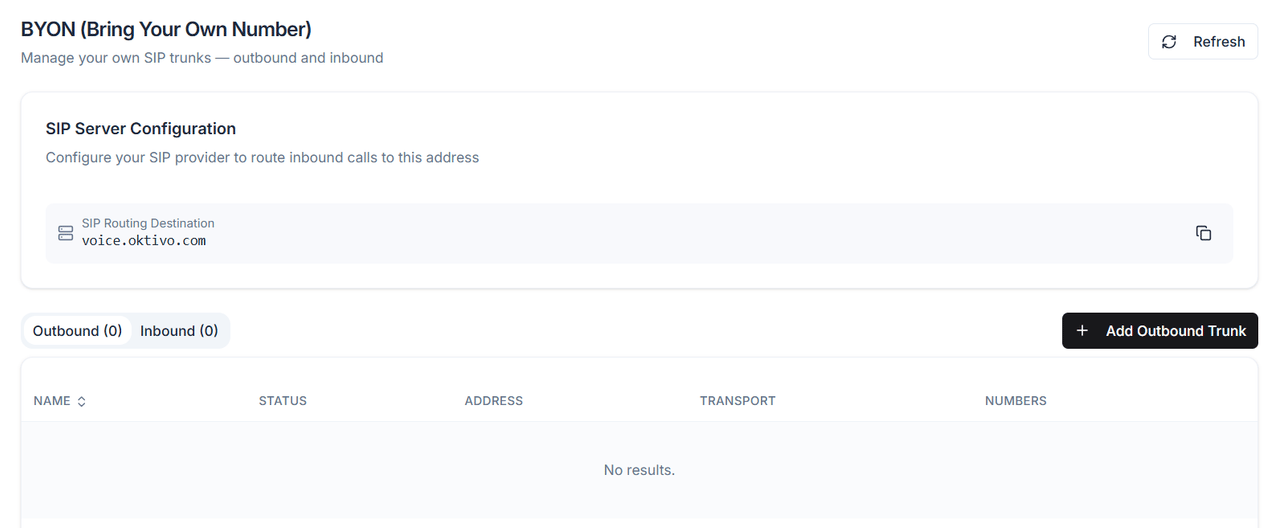
4.1 Point your provider to Oktivo (for receiving calls)
At the top of the BYON page, Oktivo shows a SIP Routing Destination. Copy this address and paste it into your provider’s inbound / termination routing settings, i.e., tell your provider to send calls for your number to this address:Only needed for inbound. You only need this step if you want the AI agent to receive calls on this number. If the agent will only place outbound calls, skip straight to 4.2.
4.2 Create an Outbound Trunk (agent places calls)
Set this up if you want your Oktivo voice agent to place calls out through your number. On the BYON page, select the Outbound tab and click + Add Outbound Trunk: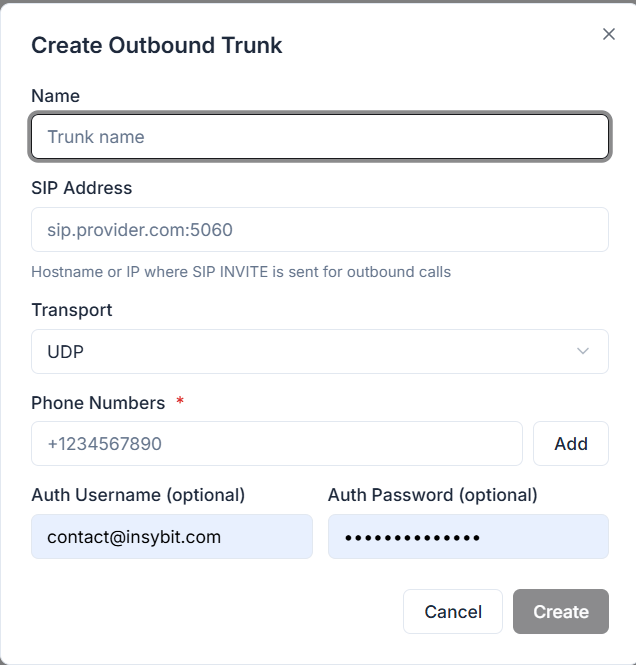
Click Create. Your agent can now place outbound calls through this number.
4.3 Create an Inbound Trunk (agent receives calls)
Set this up if you want your Oktivo voice agent to receive calls on this number. On the BYON page, select the Inbound tab and click + Add Inbound Trunk: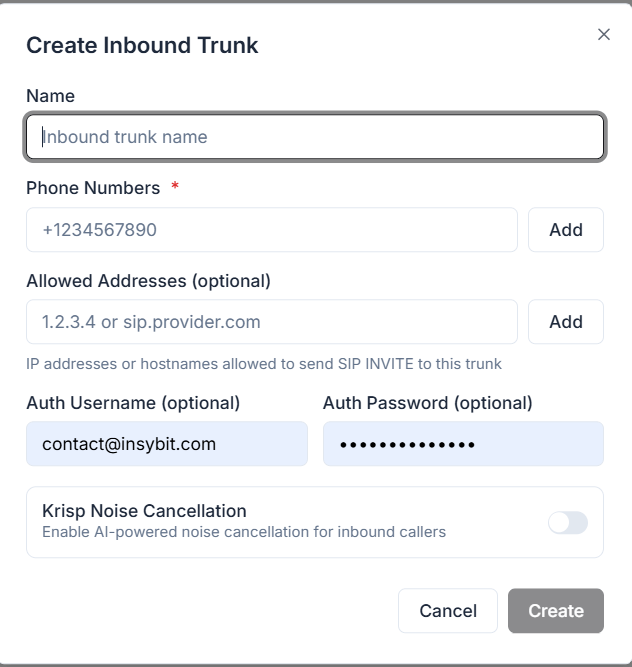
Click Create. Your agent can now receive calls on this number.
5. Verify Your Setup
Once your trunk(s) are created, confirm everything is wired up correctly:- On the BYON page, check that your new trunk shows a healthy / connected status and lists your phone number under Numbers.
- If you set up an Outbound Trunk, trigger a test outbound call from your Oktivo agent and confirm it connects and your number shows as the caller ID.
- If you set up an Inbound Trunk, call your number from another phone and confirm the Oktivo agent answers.
- Check your call history in Oktivo to confirm the call was recorded and routed as expected.
6. Troubleshooting & FAQ
Calls aren’t connecting- Double-check the SIP Address / trunk domain was copied exactly, with no extra spaces.
- Confirm the phone number is in full E.164 format, e.g.
+12345678900. - If using authentication, confirm the username/password match exactly what your provider generated.
- Confirm you pasted the SIP Routing Destination (
voice.oktivo.com) into your provider’s routing settings, not just created the Oktivo trunk. - If using Allowed Addresses, confirm the IP/hostname matches your provider’s actual outbound SIP source.
Still stuck? Reach out to Oktivo support with your trunk name and provider name, and we’ll help you get connected.